Control TCast from a Stream Deck (Companion)
TCast has a remote-control API, so you can drive the show from a Stream Deck through Bitfocus Companion. Trigger clips, run transport, cut to black, clear layers, and ride master volume, with live button feedback. You can use the Companion settings to make a clip's button lights up while it's on air, no matter where it's triggered from.
Companion can run on the same Mac as TCast or on another computer on your network.
Remote control is a Pro feature. On the free tier the whole pane is disabled and shows a Pro lock. See Licensing.
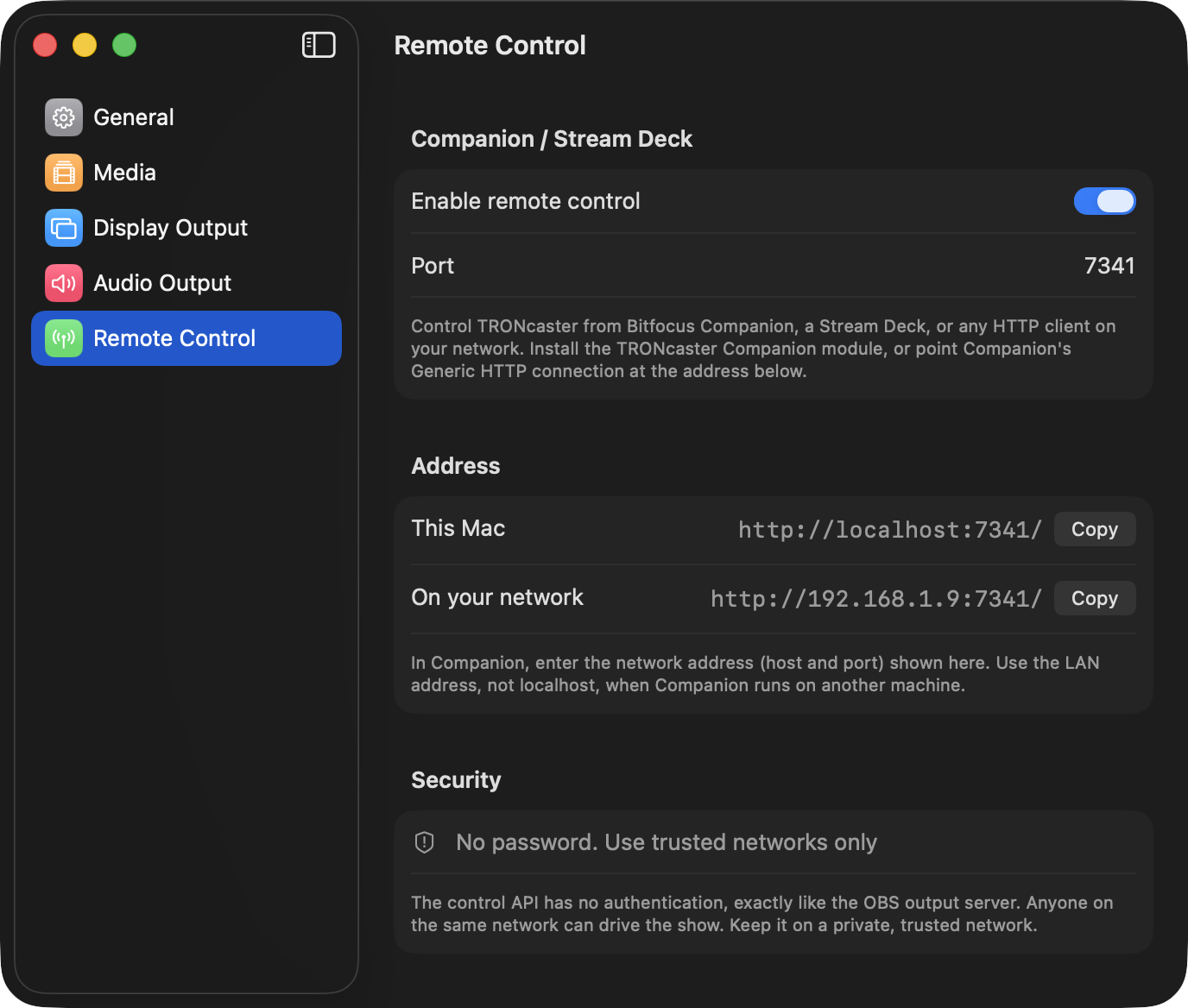
1. Turn on remote control in TCast
- Open Settings (⌘,) and select the Remote Control pane.
- Under Wi-Fi, turn on Allow Wi-Fi connections.
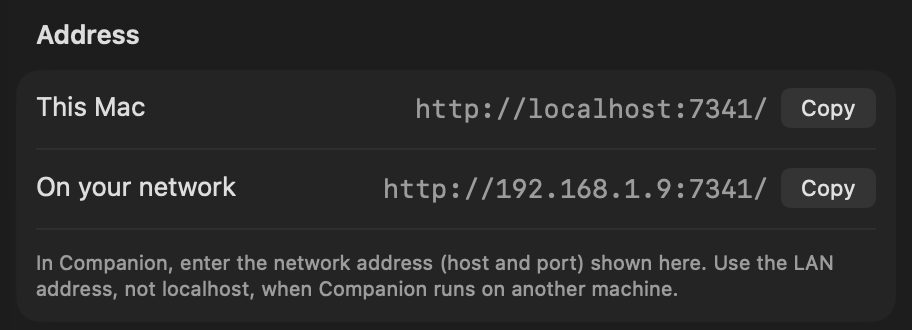
- Note the Port (default 7341) and the address shown under Address. Use the Copy button next to it.
- The This Mac address is for Companion running on the same machine.
- Use the On your network address when Companion is on another computer. Not
localhost.
- Optionally set an Optional control password under Password. When it's set, every read route, command route, and the feedback socket require it. Enter the same value in the Companion module's Control password field.
Left blank, the control API has no authentication and anyone on the network can drive the show. Either set a control password or keep it on a private, trusted network, exactly like the OBS output server.
Bluetooth
The Bluetooth section below it (Allow Bluetooth connections) is a second transport for the same API. It's for the iPhone and iPad remote.
2. Add the TCast connection in Companion
The module is in Companion's module store, so there's nothing to download and nothing to build. You need Companion 4.0 or later.
- Connections → Add connection, then search for TCast and install it.
- Enter the Host / IP and Port from TCast's Remote Control settings. Use
127.0.0.1only when Companion is on the same Mac; otherwise use the LAN address. - If you set a control password in TCast, put the same value in the module's Control password field.
The connection indicator turns green once it reaches TCast, and clip dropdowns populate from the live board.
The module gives you the clip dropdowns and the button feedback. Without it you can still drive everything over plain HTTP, covered at the bottom of this page.
3. Build buttons
The module ships ready-made presets:
- Program: Black, Play/Pause, Clear All, Next, Prev, Mute.
- Clips: a trigger template with tally pre-wired. Drop it on a button and pick the clip.
Drag a preset onto a button to get going, then customise from the actions and feedbacks below.
Actions
| Action | What it does |
|---|---|
| Trigger / clear clip (toggle, by name) | Take a clip live. The dropdown lists every clip on the board and refreshes as you edit the library. Triggering a live clip takes it off. |
| Trigger / clear clip (toggle, by board position) | Take the Nth clip live, in stable board order (playlists top to bottom, then Unsorted). Unaffected by searching in the app. |
| Play / Pause, Play, Pause, Restart clip | Transport for the primary layer (media if live, else audio). |
| Seek (relative) | Jump forward or back by a number of seconds. |
| Next clip / Previous clip | Step through the board. |
| Black | Cut to or from black (On / Off / Toggle). |
| Clear layer | Clear one layer or all layers. |
| Master volume nudge (±3 dB) / Master volume set (dB) | Ride the master fader. |
| Mute | Mute and unmute master audio. |
Feedbacks (button tally)
- Clip is live lights a button while that clip is on air. Good for a clip-launch grid with tally.
- Black is active, Program is live, Primary transport is playing, Audio is muted.
Variables
current_clip, current_time, duration, time_remaining, master_db, black, clip_count. Drop these into button text for live readouts.
Without the module (Generic HTTP)
Every action also works from Companion's built-in Generic HTTP connection, which is the way in on Companion 3 and earlier:
- Connections → Add → Generic HTTP.
- Set the base URL to
http://<mac-ip>:7341. - Have buttons
GETpaths like:/api/black/toggle/api/trigger/index/1/api/transport/toggle
You lose the clip dropdowns and button feedback, but it needs no module install. The full route list is in Control TCast from a network device.
Troubleshooting
The Remote Control pane is disabled
- Remote control is a Pro feature. See Licensing.
Companion connection stays red
- Confirm Allow Wi-Fi connections is on in TCast and the port matches.
- From another computer, use the On your network address, not
localhostor127.0.0.1, and check both machines are on the same network. - macOS may prompt for Local Network permission the first time. Allow it (System Settings ▸ Privacy & Security ▸ Local Network ▸ TCast).
Clip dropdowns are empty
- The dropdowns come from the module talking to a live board. Make sure the connection is green and that clips exist on the board.
Anyone can control it
- Remote control is open by default. Set Optional control password under Settings ▸ Remote Control ▸ Password and enter the same value in the module's Control password field. Otherwise keep remote control on a trusted network only.