Importing media
You can always drag files onto the board or press the Import Media button, but oftentimes, the media that you need isn't on your computer yet. If that's the case, TCast can import it over the network instead.
There are two ways to remotely upload. Media Upload works over your local network.Internet Upload works from anywhere, including while TCast is closed. Both live in Settings ▸ Uploads.
Media Upload (same network)
Anyone on your Wi-Fi opens a link and sends files straight into the library.
- Open Settings (⌘,) and select the Uploads pane.
- Turn on Allow media uploads.
- Share the link, or have them scan the QR code with a phone camera. Copy Link puts it on the clipboard.
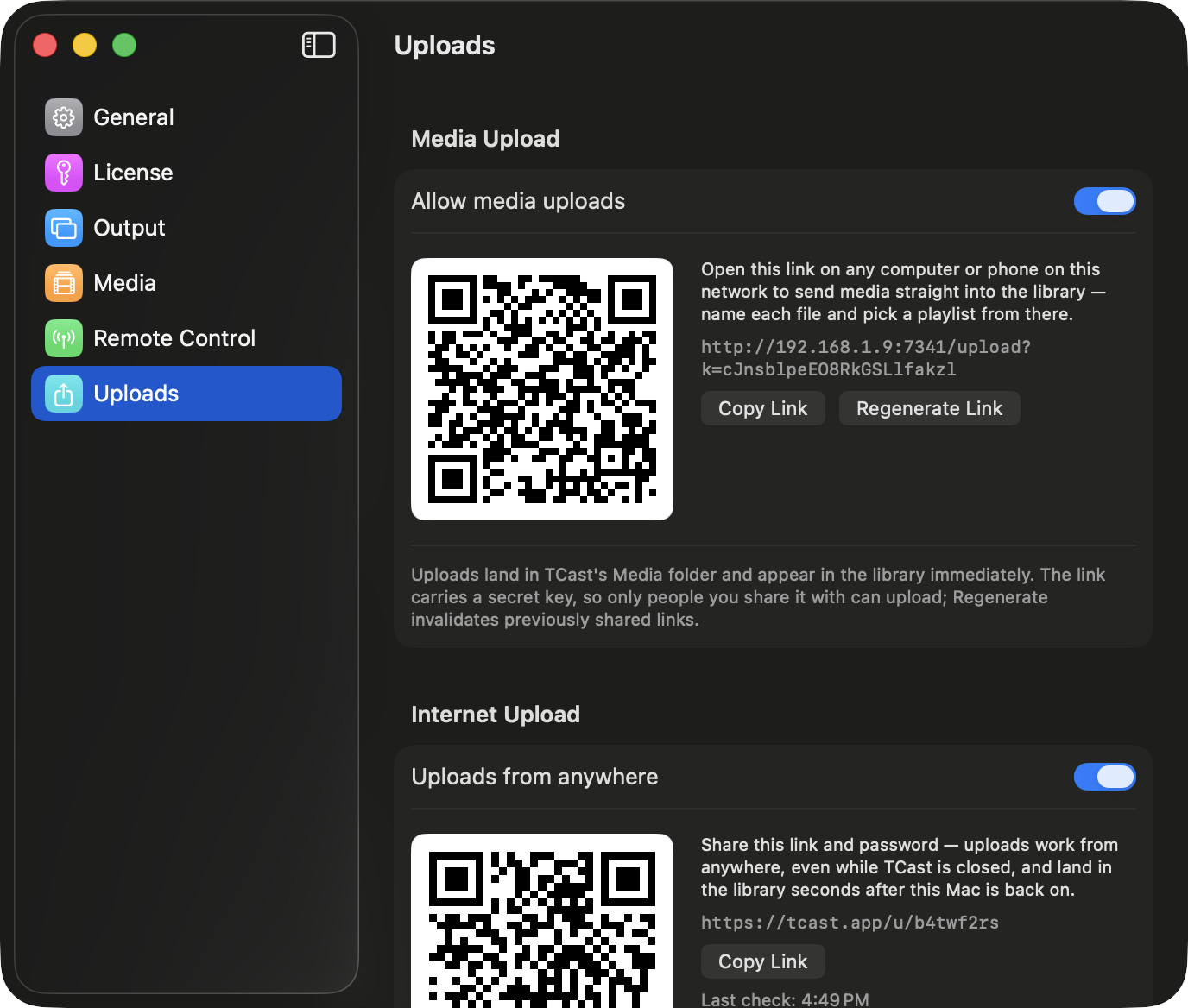
On the upload page they can name each file and pick which playlist it lands in. Files arrive in TCast's Media folder and show up in the library immediately. The cap is 16 GB per file.
The link carries a secret key, so only people you send it to can upload. Regenerate Link issues a new one and invalidates every link you've already shared, which is what you want after a show or if a link ended up somewhere public.
This needs Allow Wi-Fi connections on under Settings ▸ Remote Control, since it's the same server. If the pane says there's no upload address yet, that's why.
Internet Upload (anywhere)
The same idea, without needing to be on the same network, and without needing TCast to be running.
- In Settings ▸ Uploads, turn on Uploads from anywhere.
- Set an Upload password. Minimum 8 characters; anything shorter is refused.
- Share the link and the password.
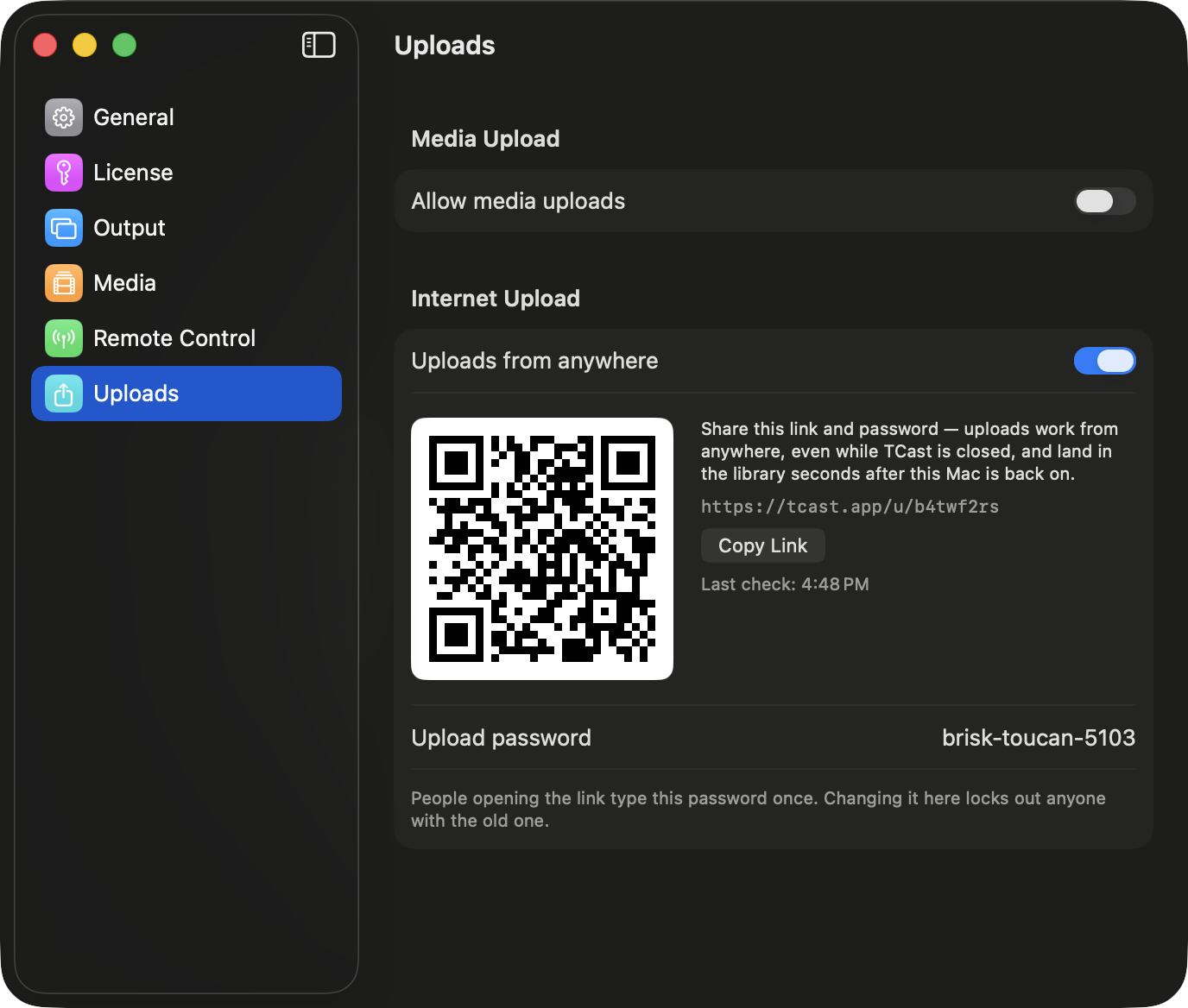
Files go to a private inbox in the cloud. Next time your Mac is online with TCast open, they download into the library on their own, usually within seconds. Uploads are held for 7 days and capped at 4 GB per file.
Whoever you send the link to only has to enter the password once. Changing it, however, locks out anyone still holding the old one.
Internet Upload is a Pro feature. See Licensing.
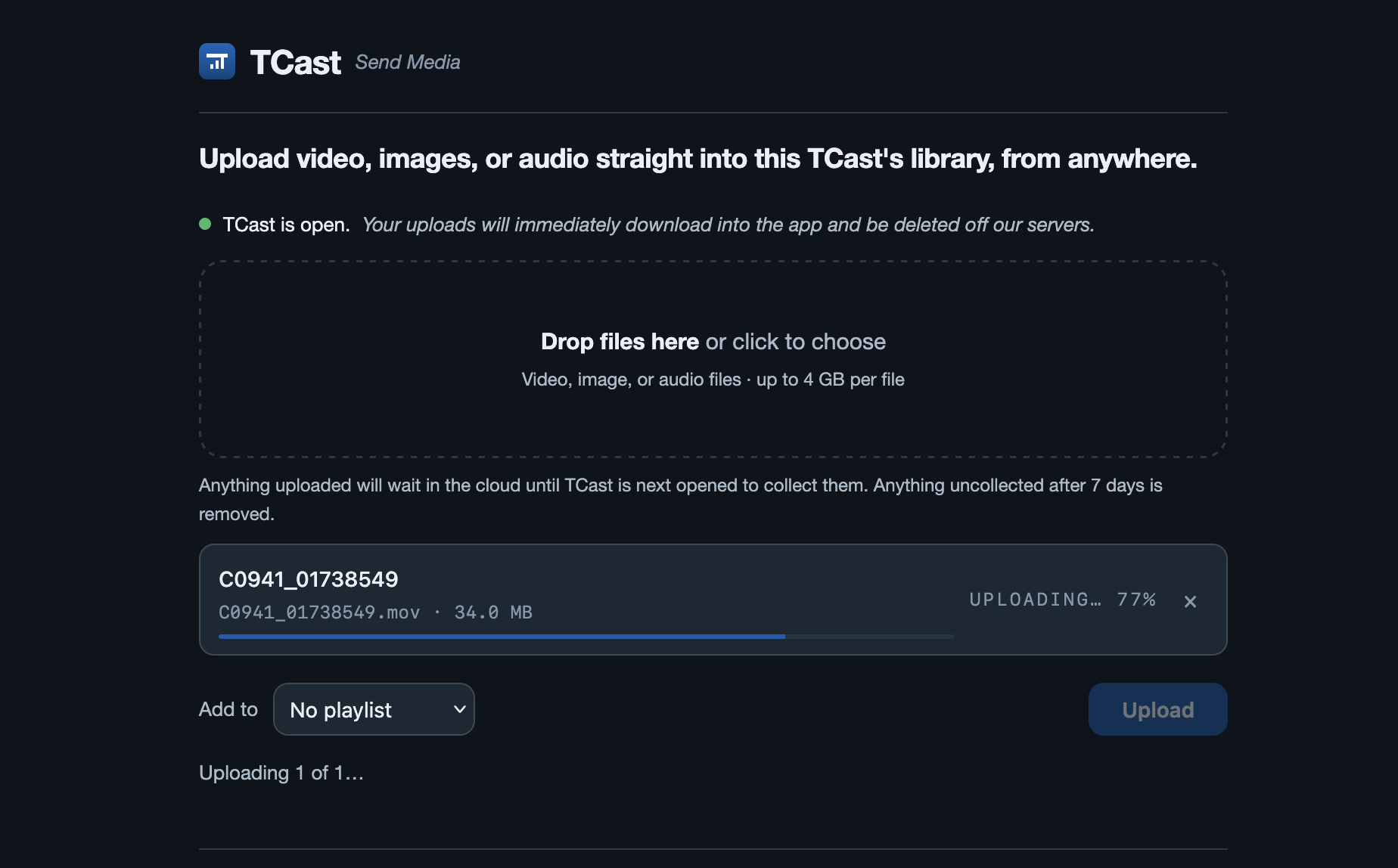
Watching files arrive
Incoming files appear on the board in a DOWNLOADING tray while they transfer, so a file that's on its way isn't a mystery. They join the library once they've finished.
Which one do I want?
Use Media Upload at a venue, where everyone's on the same Wi-Fi and the files are large. It's a direct transfer, so it's as fast as the network and there's no size problem.
Use Internet Upload when your venue's network is blocking the transfer, the person sending isn't there, or when you want material waiting for you before you arrive. The whole point is that it works TCast closed, so you can send someone the link on Monday and the files are in the library when you open the project on Friday. Please note that they expire after one week and are immediately deleted once downloaded.
Troubleshooting
The pane says there's no upload address yet
- Turn on Allow Wi-Fi connections under Settings ▸ Remote Control and check this Mac is on a network.
Someone on the network can't open the link
- They must be on the same network. Send them the link that starts with this Mac's network address, not
localhost. - macOS may need Local Network permission for TCast (System Settings ▸ Privacy & Security ▸ Local Network).
Uploads from anywhere is disabled
- It's a Pro feature. See Licensing.
The password won't stick
- It has to be at least 8 characters. Below that it's refused and the previous password stays live.
An upload failed with MED-05
- TCast couldn't write the file into its media folder. Usually disk space. See MED-05. Whoever uploaded sees the same code on their page.
Files uploaded but haven't appeared
- For internet uploads, TCast has to be open and online to collect them. Check the status row under Internet Upload. Files are kept for 7 days.