Send your program to a display
TCast can put your program full-screen on a physical display: a projector, a stage monitor, a TV, or a second screen, while you keep operating on your own. Each detected display gets its own on/off switch in the sidebar. While you can use a device like an Blackmagic UltraStudio/DeckLink through OBS to do this, this is a great built in solution that doesn't require any extra hardware.
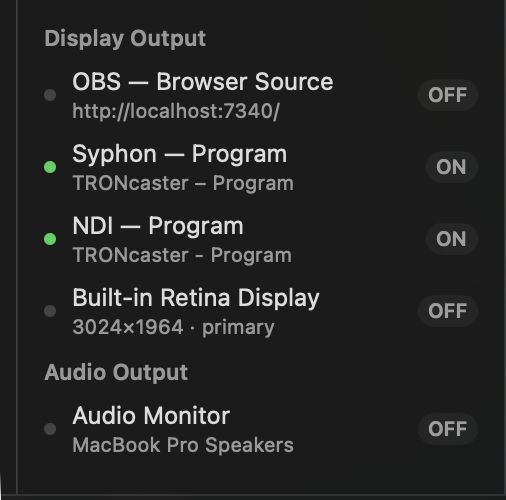
Open output on a display
- In the sidebar, under Display Output, each connected display appears as its own row. Click a display's row to open program output there full-screen. The label flips to ON. Click again to close it (OFF).
Output opens instantly and shows exactly what's on air. You can drive several displays at once. Every row you switch ON gets its own full-screen program.
Protected displays (primary and operator)
To stop you accidentally covering the screen you work from, two displays are guarded by default:
- Your primary display, the one with the menu bar.
- The controller's display, whichever screen TCast's own window is on.
A guarded display still lists in the sidebar but shows as restricted and won't open until you allow it. If you tap one, TCast explains why and links straight to the setting.
To allow output on them:
- Open Settings (⌘,) and select the Output pane.
- Under Output Displays, turn on Allow output on the primary display and/or Allow output on the controller's display.
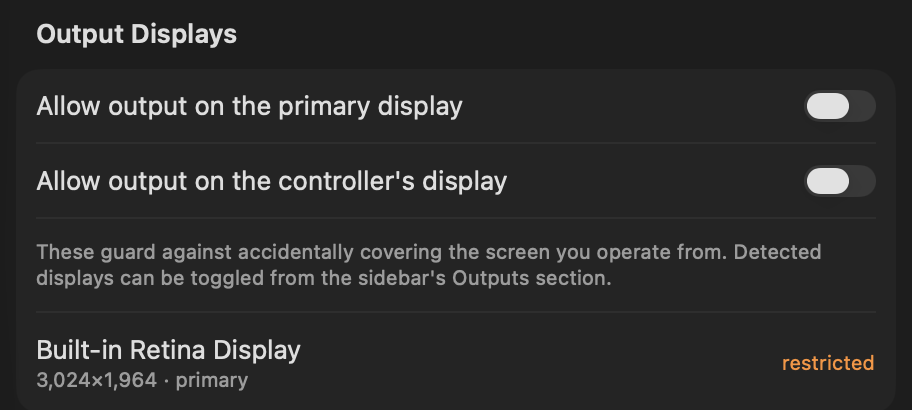
Each detected display is listed here too, with its resolution and a restricted tag when it's currently guarded.
I recommend leaving both guards on unless you have a reason not to. Losing the screen you operate from mid-show, or even just while setting up, is not fun and usually requires a system restart.
What gets sent
- The program, full-screen, exactly what's on air, including transitions and layers.
- The image is fit to each display's own resolution. For a pixel-perfect result, match Settings ▸ Output ▸ Stage to the display's native resolution. 4K and custom sizes and rates are Pro.
Display output is independent of the preview-side outputs (NDI, Syphon, OBS Browser Source, audio monitor). You can run any combination at once.
Sleep, screen savers, and unplugged displays
While a show is up — anything on air, or a display output, NDI, Syphon or browser output standing by — TCast keeps the Mac awake. No screen saver, no display sleep, no system sleep, and nothing for you to change in System Settings. It lets go the moment the show is down, so an idle TCast never stops your Mac sleeping normally.
Closing the lid is the exception: that sleeps a laptop whatever any app wants. For a show, leave it open, or run the Mac in clamshell mode on power with an external display and keyboard.
If a display disappears mid-show — unplugged, switched to another input, or gone when the Mac wakes — TCast closes that output and tells you which display it was (DSP-02). Reconnect it and switch the output back on from the sidebar.
Troubleshooting
A display shows "restricted" and won't turn on
- It's your primary or controller display. Allow it under Settings ▸ Output ▸ Output Displays (see above).
A display isn't listed
- Make sure it's connected and awake. If it was just plugged in, give macOS a moment to detect it. The list updates as displays come and go.
An output turned itself off mid-show
- Its display went away. See DSP-02 — reconnect the display and switch the output back on.
The image is scaled or has black bars
- Match Settings ▸ Output ▸ Stage to the display's native resolution and aspect ratio.
The program is black on the display
- Check something is on air in TCast. The output mirrors the program.