Control TCast from the TCast Remote app
TCast Remote turns an iPhone or iPad into a control surface for the Mac running the show. Fire clips from a grid with tally, run transport, cut to black, and ride the master fader, from anywhere you can see the screen. Download it from the Apple App Store!
It connects two ways: over Wi-Fi, or directly over Bluetooth. Wi-Fi is always better when possible, but I have encountered too many Wi-Fi networks, especially in schools, that have dumb restrictions that prevent things like this. For those situations, use Bluetooth.
The remote app is not on the App Store in the EU yet, but is available everywhere else.
TCast Remote is the official companion to TCast. It is published on the App Store by Sarah Kamstra, with my authorization as the owner of the TCast name and of this site. — Henry Kamstra
Remote control is a Pro feature. On the free tier the whole pane is disabled and shows a Pro lock. See Licensing.
1. Turn on remote control in TCast
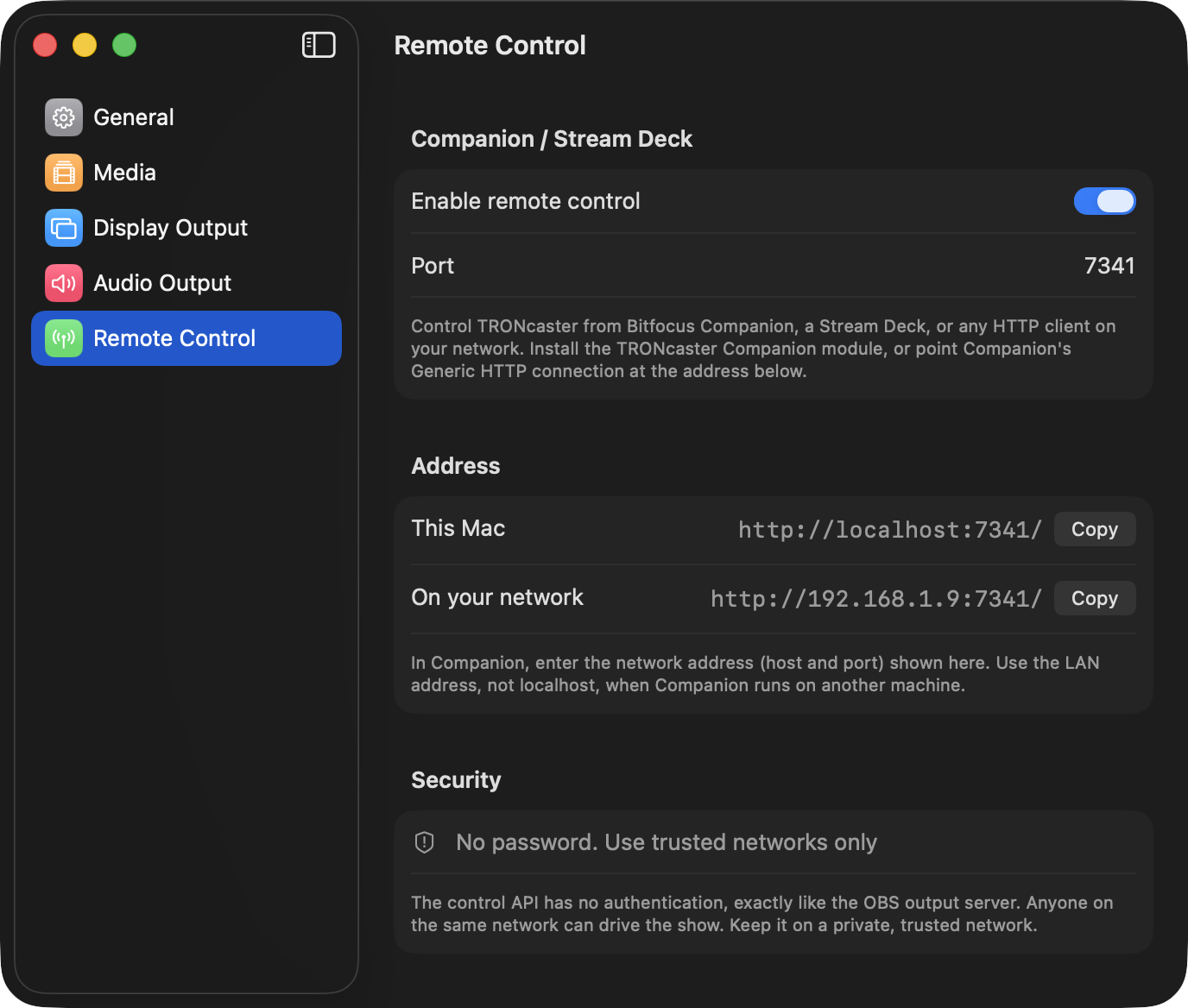
- Open Settings (⌘,) and select the Remote Control pane.
- Under Wi-Fi, turn on Allow Wi-Fi connections.
- If you want the Bluetooth route as well, turn on Allow Bluetooth connections under Bluetooth. macOS asks for Bluetooth access the first time.
2. Pair the phone
With Wi-Fi and/or Bluetooth connections on, the iPhone / iPad Remote section shows a QR code. There are multiple ways to conenct. Start by opening TCast Remote, then:
- Your Mac should show up in the list under its own name, with Wi-Fi and Bluetooth icons lit up when each is enabled. Click on it to connect.
- If it doesn't show up, tap Scan QR Code, and point your camera at the code in Settings.
- If none of that works, you can manually enter the IP and port.
That's the whole pairing step. The app remembers the Mac and reconnects to it on its own next time, including after the phone sleeps or you switch apps.
Scanning needs camera permission the first time, and the first launch on a new phone asks for Local Network permission. Both are one-time.
The i button at the top of the connect screen brings this step back up on the phone if you need it later.
3. Run the show
Clips. The grid mirrors your board, grouped by playlist, with thumbnails. Tap one to take it live. A live clip is outlined in red, whether you triggered it from the phone or from the Mac. Tap it again to take it off.
Transport. Play and pause, skip 10 seconds either way, restart, and step to the next or previous clip. The time readout runs smoothly rather than ticking.
Program. BLACK cuts to and from black. CLEAR ALL clears every layer and asks first, because it's the one button you don't want to hit by accident.
Audio. A master fader in dB, and mute.
Everything you do on the phone shows up in the app immediately, and everything you do in the app shows up on the phone. Two people can drive the same show from both ends without either one going stale.
Bluetooth
Bluetooth is a second route to the same controls. It needs no Wi-Fi, no Local Network permission, and no address to type, and it works even with Allow Wi-Fi connections switched off. Turn on Allow Bluetooth connections in Settings ▸ Remote Control ▸ Bluetooth, and the phone finds the Mac when it's in range.
Thumbnails arrive smaller over Bluetooth, because the link carries a tiny fraction of what Wi-Fi does. Connect over Wi-Fi later in the same session and the grid reloads them at full quality.
When your Mac is reachable both ways, the phone tries your preferred route first and falls back to the other one if it cannot get through. Choose which comes first under the gear on the connect screen.
Passwords
If you set an Optional control password in Settings ▸ Remote Control ▸ Password, the phone asks for it when it connects, over Wi-Fi and over Bluetooth alike. A Mac that wants one shows a padlock in the phone's list before you connect, whichever route it was found on, so you can enter the password up front.
Change the password on the Mac and the phone asks for the new one as soon as it notices. Clear it and the phone carries on without being asked again.
Left blank, the control API has no authentication and anyone on the network can drive the show. Either set a control password or keep it on a private, trusted network, exactly like the OBS output server.
Troubleshooting
The Remote Control pane is disabled
- Remote control is a Pro feature. See Licensing.
The phone can't find the Mac
- Check both are on the same Wi-Fi network. Guest networks and networks with client isolation turned on will block it.
- macOS gates discovery behind Local Network permission. If the Remote Control pane warns that discovery is blocked, allow TCast in System Settings ▸ Privacy & Security ▸ Local Network, or skip discovery and scan the QR code instead, which always works.
- Failing that, turn on Allow Bluetooth connections and connect that way.
It connects, then drops
- The app reconnects on its own and retries the moment you bring it back to the foreground. If your Mac is reachable both ways, it moves to the other route after a few failed attempts, so a Wi-Fi network that gives out mid-show ends up on Bluetooth without you touching anything.
- If it keeps dropping on both routes, the Wi-Fi is still the first suspect. Turn Wi-Fi off on the phone and run on Bluetooth alone.
The clip grid is empty
- The grid comes from a live board. Make sure the Mac has clips on it and the app shows itself as connected.
It asks for a password I don't have
- A control password is set on the Mac. Read it back from Settings ▸ Remote Control ▸ Password, or clear it there.
It says the password is wrong and I know it isn't
- The password travels with the connection, so both ends have to be current. Update the Mac to TCast 1.2.1 or later and the phone to TCast Remote 1.1 or later, then try again.
I'm in the EU
- The app isn't on the App Store there yet. Use a Stream Deck or the control API in the meantime.