Control TCast from a network device
TCast runs a small control API on your Mac. Anything on your network that can send a web request can drive the show: a browser tab, a tablet, a show-control system, a lighting desk with an HTTP macro, a shell script, or Companion's built-in Generic HTTP connection.
Commands are plain HTTP GETs, so there's nothing to install and nothing to build. A WebSocket carries the state back if you want live feedback.
If you're driving it from a Stream Deck, use the Companion module instead. It talks to this same API, with clip dropdowns and button tally already wired. From an iPhone or iPad, use the TCast Remote app.
Remote control is a Pro feature. On the free tier the whole pane is disabled and shows a Pro lock. See Licensing.
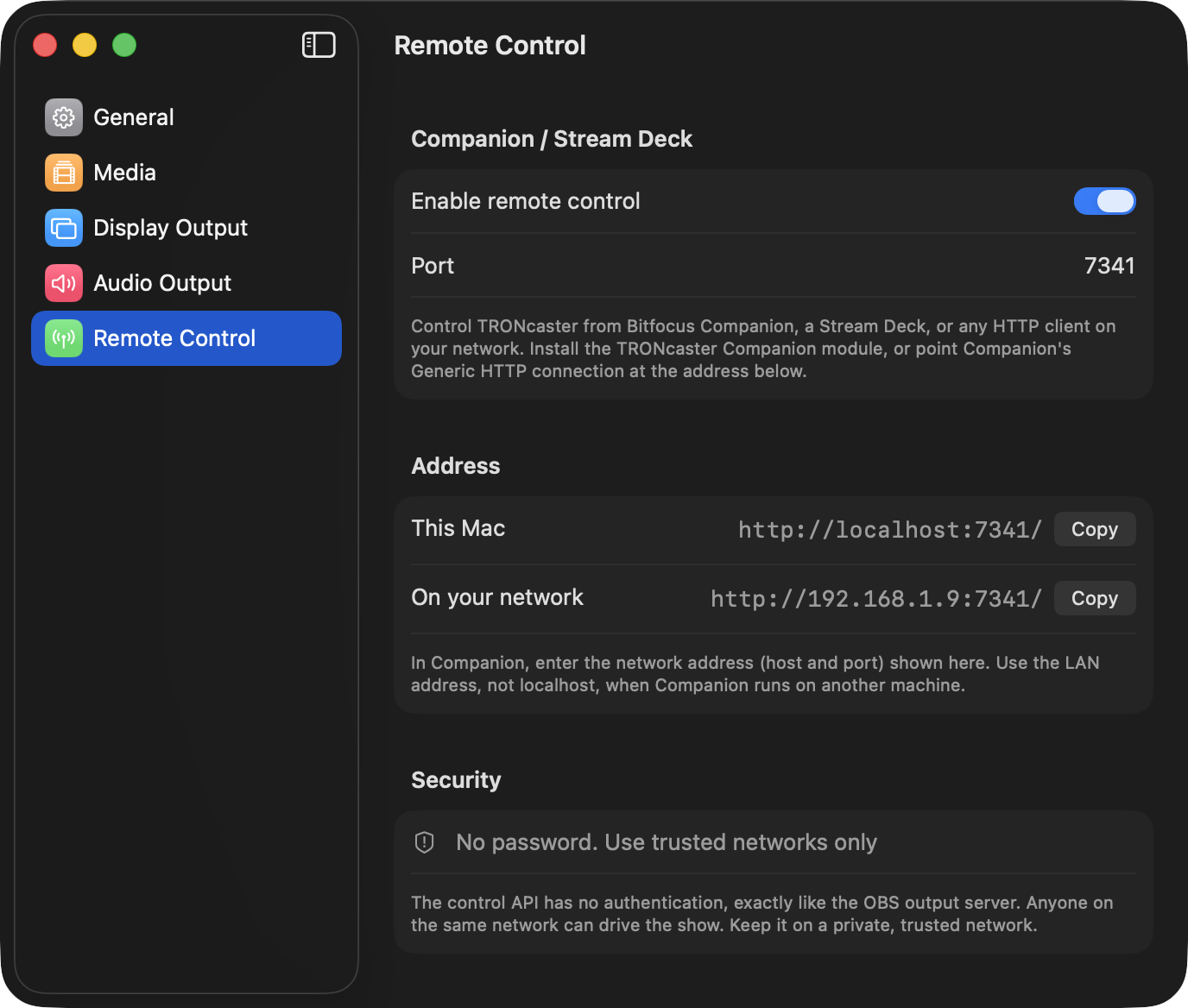
1. Turn on remote control in TCast
- Open Settings (⌘,) and select the Remote Control pane.
- Under Wi-Fi, turn on Allow Wi-Fi connections.
- Note the Port (default 7341) and the address shown under Address. Use the Copy button next to it.
- The This Mac address is for something running on the same machine.
- Use the On your network address from any other device. Not
localhost.
That address is the base URL for everything below. Open it in a browser to check you can reach it: TCast answers with a one-line banner.
http://192.168.1.42:7341/
TCast control API — see /api/state
2. Set a password
Under Password, set an Optional control password. When it's set, every read route, every command, and the feedback socket require it. Send it either way:
- as a query parameter:
http://192.168.1.42:7341/api/black/toggle?k=yourpassword - as a header:
X-Control-Password: yourpassword
Left blank, the control API has no authentication and anyone on the network can drive the show. Either set a control password or keep it on a private, trusted network, exactly like the OBS output server.
Commands
Every command is a GET. A command that works answers 200 with {"ok":true}. A bad clip reference or an unknown route answers 404, a malformed value answers 400, and both carry an error string.
Transport commands sent to an idle program do nothing and still report success, the same way the keyboard shortcuts behave.
Clips
| Route | What it does |
|---|---|
/api/trigger/index/{n} | Take the Nth clip live, 1-based, in stable board order (playlists top to bottom, then Unsorted). Unaffected by searching in the app. |
/api/trigger/id/{id} | Take a specific clip live by its id, which you read from /api/state. Percent-encode it. |
/api/clip/next, /api/clip/prev | Step through the board. |
Triggering a clip that's already live takes it off, so one button can serve as both.
Transport
| Route | What it does |
|---|---|
/api/transport/play, /pause, /toggle, /restart | Transport for the primary layer (media if live, else audio). |
/api/transport/seek?by={seconds} | Jump forward or back. Negative goes back. |
/api/transport/seek?to={seconds} | Jump to an absolute position. |
/api/transport/{layer}/play, /pause, /toggle, /restart | The same, aimed at one explicit layer. |
/api/transport/{layer}/seek?by=, ?to= | Seek one explicit layer. |
{layer} is one of background, media, overlay, audio.
Program
| Route | What it does |
|---|---|
/api/black/on, /off, /toggle | Cut to or from black. |
/api/clear/all | Clear every layer. |
/api/clear/{layer} | Clear one layer. |
Audio
| Route | What it does |
|---|---|
/api/volume/set?db={n} | Set master volume in dB. Clamped to the fader's range. |
/api/volume/step?by={n} | Nudge master volume by N steps of 3 dB. Negative goes down. |
/api/volume/{layer}?v={0-1} | Set one layer's cue volume, 0 to 1. |
/api/mute/on, /off, /toggle | Mute and unmute master audio. |
Setting or nudging the master volume also unmutes.
Reading state
| Route | Returns |
|---|---|
/api/state | The full snapshot: what's live on each layer, transport position, master volume, mute, black, every clip on the board, and the playlists. |
/api/clips | Just the clip list, as {"clips":[…]}. |
/api/thumb/{id} | The thumbnail image for one clip. |
Each clip in the snapshot carries its index (the number /api/trigger/index/ wants), id, name, kind, layer, playlist, duration, and live.
The API sends Access-Control-Allow-Origin: *, so a web page you write yourself can call it directly from the browser without a proxy.
Live updates
Polling /api/state works, but there's a WebSocket at the same address if you want to be told instead of asking:
ws://192.168.1.42:7341/You get the full state snapshot the moment you connect, another one whenever anything structural changes, and a lighter transport message about once a second while something is playing. Send {"type":"hello"} at any time to ask for a fresh snapshot.
The password gate applies to the socket too. Pass it as ?k= on the URL, since you can't set headers from a browser's WebSocket.
Troubleshooting
The Remote Control pane is disabled
- Remote control is a Pro feature. See Licensing.
Nothing answers on the port
- Confirm Allow Wi-Fi connections is on in TCast and that the port matches.
- From another device, use the On your network address, not
localhostor127.0.0.1, and check both machines are on the same network. - macOS may prompt for Local Network permission the first time. Allow it (System Settings ▸ Privacy & Security ▸ Local Network ▸ TCast).
Everything answers 401
- A control password is set. Add
?k=yourpasswordto the URL or send theX-Control-Passwordheader.
A trigger answers 404
- The clip id or index doesn't exist on the board. Read
/api/stateand use theindexandidit reports. Ids change when you re-import media, indexes change when you reorder the board.
Anyone can control it
- The API is open by default. Set Optional control password under Settings ▸ Remote Control ▸ Password, or keep remote control on a trusted network only.