Bring your program into OBS as a Browser Source
TCast serves its program as a web page, so any copy of OBS can pull it in as a Browser Source. This works whether OBS is on the same Mac as TCast or on another computer on your network. It carries video and audio, and there's nothing to install in OBS.
What you'll need
- OBS Studio.
- OBS on the same Mac, or another computer on the same network.
Get the output URL
TCast shows the URL in two places:
From the sidebar
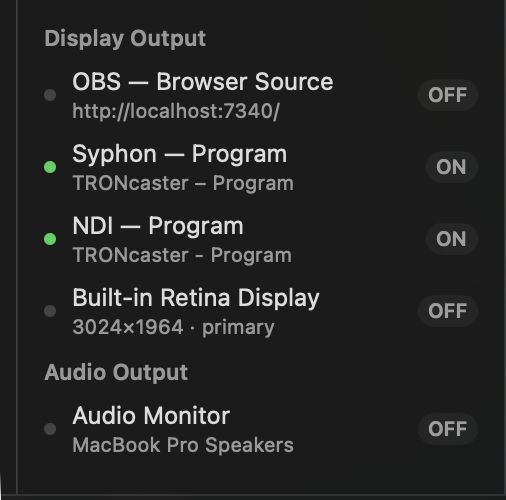
- Under Display Output, use the OBS — Browser Source row. The Connect to OBS panel there lists the steps and the URL, with a Copy button.
From Settings
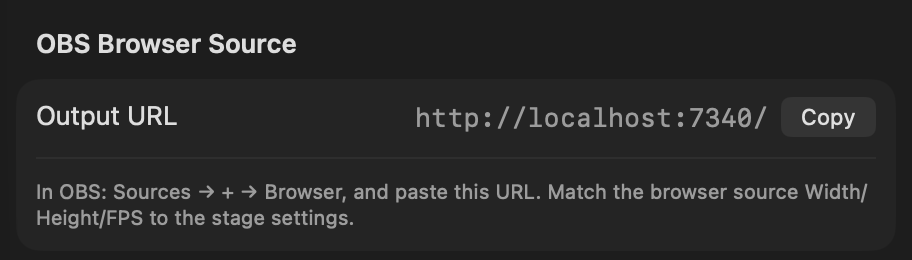
- Open Settings (⌘,) and select the Output pane.
- Under OBS Browser Source, click Copy next to Output URL.
The OBS — Browser Source row shows LINK once OBS is connected, and OFF when nothing is pulling the feed.
Add it in OBS
- In Sources, click + ▸ Browser.
- Paste the Output URL into the URL field.
- Set Width, Height, and FPS to match your stage, for example 1920 × 1080 @ 60 (Settings ▸ Output ▸ Stage). A mismatch here is the usual cause of a scaled or cropped picture.
- Tick Control audio via OBS on the source so OBS handles the program audio cleanly.
- Click OK.
Your program appears in the scene, in sync, with audio.
What gets sent
- The program, exactly what's on air, video and audio together.
- The picture is rendered at the Width/Height/FPS you set on the source, so keep those matched to Settings ▸ Output ▸ Stage.
Codecs a browser source can't play
A Browser Source is Chromium, and Chromium only decodes the delivery codecs: H.264, HEVC, VP9 and AV1. A clip in a production codec — ProRes, DNxHD, Animation/RLE, Motion JPEG — shows nothing at all in OBS.
This is a limit of the browser, not of TCast. macOS decodes those codecs fine, so the same clip keeps playing on your display outputs, on NDI and on Syphon — it's only the Browser Source that comes up blank.
Take a clip TCast knows the Browser Source can't handle, while one is connected, and you'll get a yellow OUT-03 banner saying so.
If your clips are ProRes, use Syphon or NDI instead — both take the clip as-is. Otherwise re-export as H.264.
Browser Source or something else?
Browser Source is the right call when you want audio in the same source, or when OBS is on another machine. If OBS is on this Mac and you mainly want video, Syphon is a lighter path. Also, it is generally more reliable, and there are other ways to send audio. The documentation index has the full comparison.
Troubleshooting
The row says OFF and OBS shows nothing
- Check that the URL is pasted exactly. Use Copy rather than retyping.
- On another computer, make sure it's on the same network and that its firewall isn't blocking the connection.
The picture is scaled, cropped, or blurry
- Set the browser source Width/Height/FPS to match Settings ▸ Output ▸ Stage.
There's no audio
- Enable Control audio via OBS on the browser source. Without it, OBS may route the audio to the monitor only, or not at all.
The picture is black
- Check something is actually on air in TCast. The feed shows whatever the program is showing.